Custom Domains
Custom domains let you use your own domain name to access your Keycloak instance instead of the default *.phasetwo.io domain. They are available on every plan, with the number you can add depending on your tier:
| Tier | Custom domains |
|---|---|
| Starter | Up to 2 |
| Premium | Up to 5 |
| Enterprise | Up to 15 |
Serving app association files on those domains requires Premium or Enterprise.
On Enterprise, a domain can be a wildcard, which serves every subdomain beneath it from a single entry.
Every new cluster starts with a 30-day free trial — no charge until it ends, cancel any time. Start for free, or see the pricing page for what each plan includes.
To add a new custom domain, you must visit the Clusters > Cluster > Config > Domains section of the Dashboard. This url will be unique based on your cluster.
Once on the page, you can add a new domain by entering the domain the "Add a custom domain" section and hitting "Submit". Enter the custom domain you wish to use. We recommend using a subdomain such as auth.yourdomain.com or login.yourdomain.com.
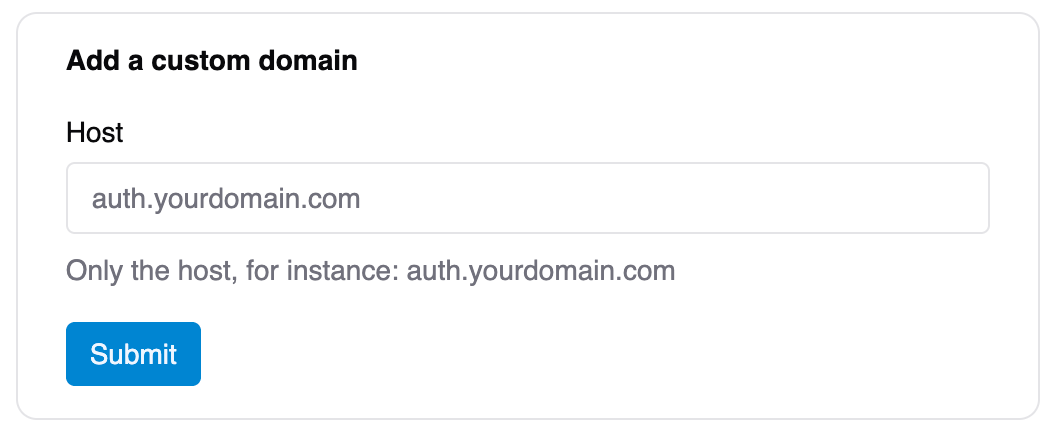
After entering the domain, you will be provided with a DNS record that you must add to your DNS provider. This is typically done through the management console of your domain registrar or DNS hosting provider.
-
Validation records: needed to prove ownership of the domain.
-
Vanity records: needed to route traffic to Phase Two. For all cloud providers use the following format for the vanity:
CNAME
yourdomain.comTO{cluster_name}.global.auth.ac
After you create the records, it may take some time for DNS propagation to complete. You can use tools like DNS Checker to verify that the records have been propagated successfully. Once the records are verified, you can return to the Phase Two Dashboard to check that the records are present. Once the DNS records are verified, we will issue your cert. The verification and certificate issuance process are automatic, but are dependent on DNS entries.
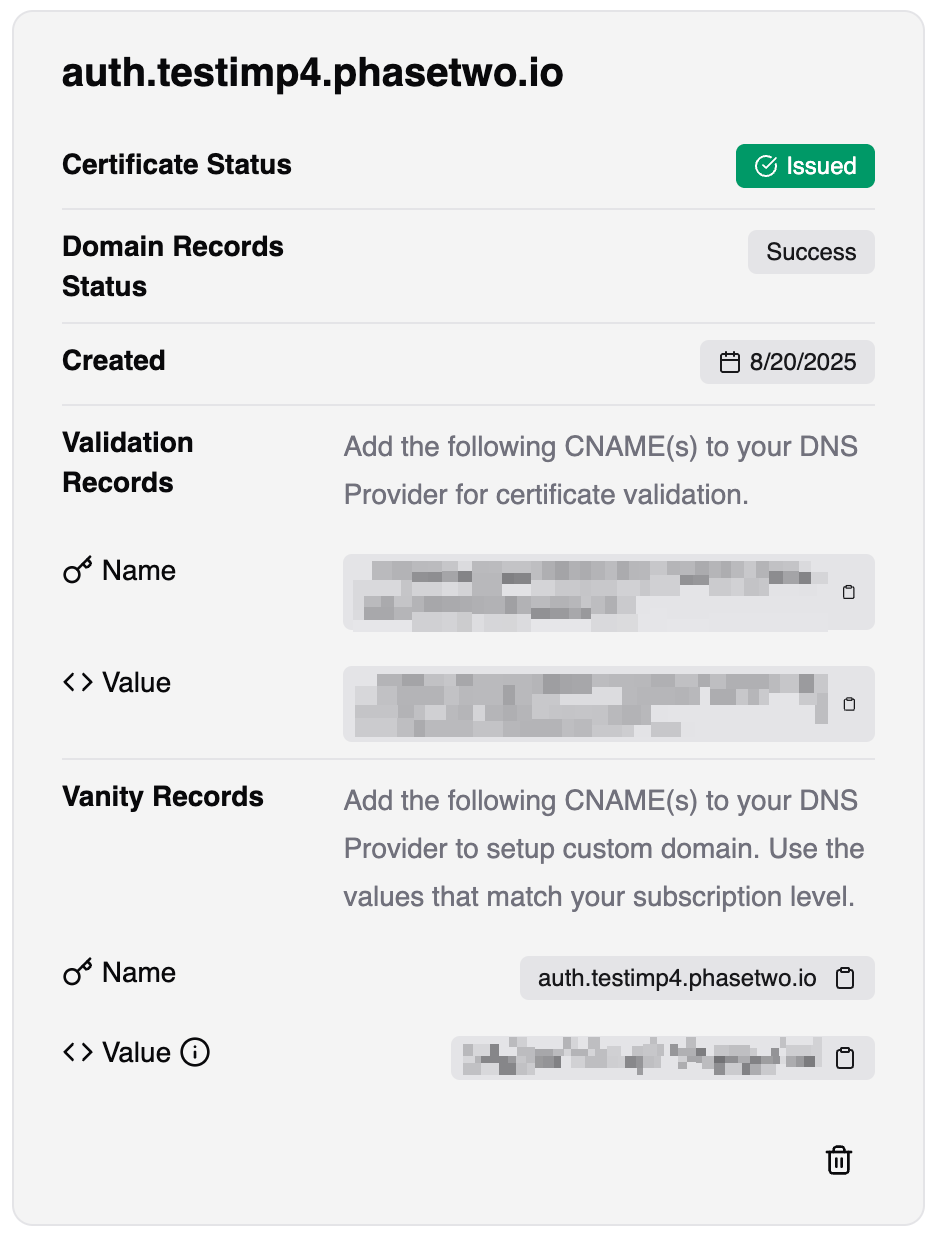
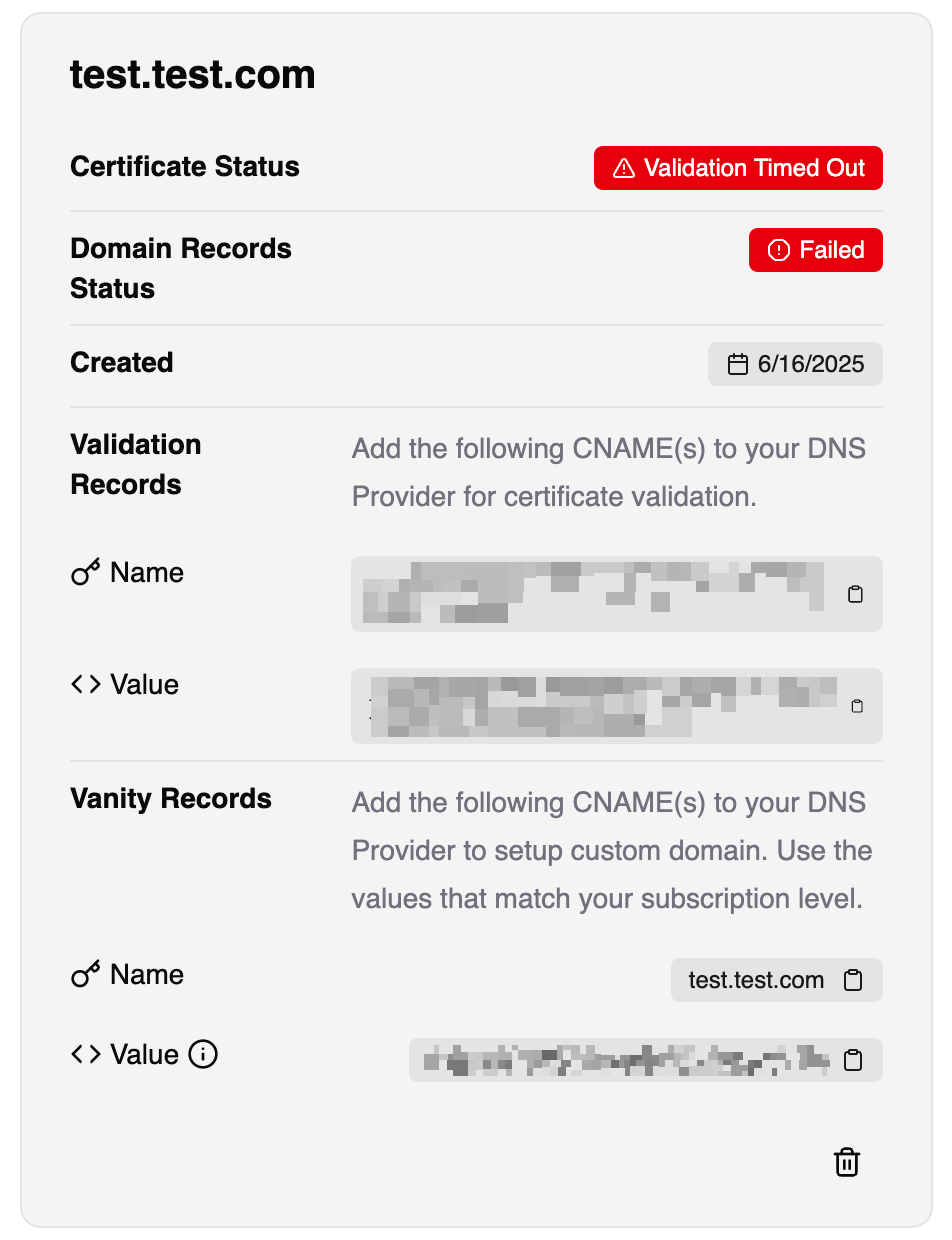
If you fail to setup your DNS records within 48 hours, the request will expire and you will need to remove and re-add the domain. The record values will not change, but the request will be reset. Use the "trash" icon next to the domain to remove it.
Wildcard domains
If you give each of your own customers a branded login URL — customer1.sso.yourdomain.com, customer2.sso.yourdomain.com, and so on — you do not need a custom domain for each one. A single wildcard domain serves all of them.
Enter *.sso.yourdomain.com in the same Add a custom domain field. It counts as one of your custom domains, however many subdomains you go on to serve. Available on Enterprise.
The two records you need
A wildcard needs exactly two DNS records, and that is true whether you serve five subdomains or five thousand:
| Purpose | Type | Name | Value |
|---|---|---|---|
| Validation | CNAME | _<hash>.sso.yourdomain.com | the value shown in the Dashboard |
| Vanity | CNAME | *.sso.yourdomain.com | {cluster_name}.global.auth.ac |
The Dashboard shows you the exact values, as it does for any domain. Note that the validation record sits beside your subdomains rather than beneath any of them — that is what makes this work.
Do not add records for individual subdomains
This is the one thing worth getting right. Once the wildcard is in place, do not create a CNAME for individual subdomains. It looks harmless and it is not:
- It is redundant. The wildcard already resolves every subdomain beneath it.
- It creates a node in your DNS, which stops the wildcard resolving anything below that name.
- It makes that exact name impossible to certify, permanently. A certificate for
customer1.sso.yourdomain.comneeds a validation record beneath that name, while routing it needs a CNAME at that name — and DNS does not allow records beneath a CNAME.
If you are moving from per-customer records to a wildcard, the migration is to remove those records, not to add to them.
Serving the parent domain too
A wildcard never covers its own parent: *.sso.yourdomain.com serves customer1.sso.yourdomain.com but not the bare sso.yourdomain.com. If you want that name to serve a login page as well, add it in the Dashboard as a second custom domain. It counts as one more of your allowance.
To be clear about how this differs from the warning above: adding a record at the parent is expected and safe. What breaks a wildcard is adding a record at a name beneath it, alongside the subdomains it serves.
This is the one domain that does not follow the two-record pattern, in two ways.
You do not need a new validation record. A wildcard and its parent are validated by the same record — the one already in your zone for *.sso.yourdomain.com. Nothing to add, and the certificate is normally issued straight away rather than waiting on DNS.
Route it with an ALIAS record, not a CNAME. This is the part worth reading twice, because a CNAME here does real damage:
| Purpose | Type | Name | Value |
|---|---|---|---|
| Validation | — | already in your zone | — |
| Vanity | ALIAS (not CNAME) | sso.yourdomain.com | {cluster_name}.global.auth.ac |
The reason is that sso.yourdomain.com already has records underneath it — the wildcard itself, and the validation record. DNS does not allow a CNAME to coexist with anything below it: a CNAME at a name hides every record beneath that name. Add one here and every subdomain stops resolving, and the certificate can no longer renew. Neither failure points back at the record you just added, which is what makes it an expensive mistake.
An ALIAS record avoids this. It resolves to addresses at the name itself instead of pointing at another name, so nothing beneath it is hidden. Providers give it different names — ALIAS, ANAME, or "CNAME flattening" — but they behave the same way here, and many support it on a subdomain like this one.
If your DNS provider has no equivalent, delegate sso.yourdomain.com as its own zone (with NS records) to one that does, and keep the wildcard and validation records there. Do not point an A record at addresses you have looked up yourself — the addresses serving your domain change without notice, and a hardcoded one will fail silently later.
One quirk to expect: an ALIAS is resolved by your DNS provider rather than by your visitor's, so the parent domain may be served from a different location than the subdomains are. It is a small difference in latency and nothing more.
Limits
A wildcard covers exactly one level. *.sso.yourdomain.com serves customer.sso.yourdomain.com, but not customer.team.sso.yourdomain.com.
Be aware of how that fails, because it is worse than a plain error. DNS wildcards do match multi-level names, so customer.team.sso.yourdomain.com resolves. Our edge accepts the name and routes it. The request reaches your Keycloak and is answered. The only thing that stops it is the certificate, which covers one level and does not match that hostname — and a certificate mismatch is what browsers present as a full-page "your connection is not private" warning, on the login page itself.
So the shape to avoid does not announce itself as a misconfiguration; it looks like a working URL right up to the point a user is told the site may be impersonating you. If you generate these URLs from customer names, validate that each produces a single label with no dots before handing it out.
A wildcard does not cover its own parent. *.sso.yourdomain.com does not serve sso.yourdomain.com. You can add that as a domain of its own — see Serving the parent domain too, which is the one case with different DNS.
App association files are not available on a wildcard domain. Those files are fetched from the exact hostname a credential was saved under, so they have to be published per hostname. Use a specific custom domain if you need them.
Each subdomain is its own issuer
Signing in at customer1.sso.yourdomain.com produces tokens whose iss claim is https://customer1.sso.yourdomain.com/realms/<realm>. Every subdomain has a different one.
If your application validates tokens against a single hardcoded issuer, it will reject them all. Either discover the OpenID configuration per tenant, or accept the issuer belonging to the subdomain the user signed in on. This is the most common thing to catch people out, and it is worth checking before you hand the first URL to a customer.
Sessions are per subdomain
Cookies are scoped to the hostname, so a session on one subdomain is not shared with another, even though they are the same realm and the same Keycloak. That is usually what you want when the subdomains represent different tenants — just don't expect single sign-on to carry across them.
App association files
If you have a mobile app, your custom domain can publish the files iOS and Android use to link the domain to that app. This is what lets a password manager autofill a saved password inside your app — and, later, lets a passkey created on your login page be used from it.
Available on Premium and Enterprise plans, managed under Clusters > Cluster > Config > Resources.
Three things can be served:
| Path | Purpose |
|---|---|
/.well-known/apple-app-site-association | Links the domain to your iOS app |
/.well-known/assetlinks.json | Links the domain to your Android app |
/.well-known/change-password | Where password managers send someone to change their password |
Why they must live on this domain
The operating system fetches these files itself, out of band, from a fixed path at the root of the domain — not as part of any request your app makes.
It matches on the exact hostname. A file on example.com does not cover auth.example.com. The credential is saved under the domain of the login page, so if your users sign in at auth.example.com, that is the origin that has to publish the file.
There are two partial exceptions, both current as of this writing — platform behaviour does change, so check the vendor documentation before relying on either. On iOS, a wildcard entitlement (webcredentials:*.example.com) makes the file be fetched from your apex domain instead, covering subdomains. Android has no wildcard, though a statement file on the subdomain can include a central one elsewhere.
Writing the files
Building the files themselves — Team IDs, bundle identifiers, package names, signing fingerprints, and the declaration your app has to make in return — is covered in Write the App Association Files That Let Mobile Apps Autofill Your Login. That tutorial is not Phase Two specific and applies to any Keycloak deployment.
Uploading a file
- Add and verify the custom domain, as described above.
- Go to Config > Resources and find App Association Files.
- Choose the domain, then upload the file for the platform you need.
The file is validated when you upload it. Uploads are rejected if they are not valid JSON, or if they are missing the fields the operating system requires — webcredentials.apps for Apple, package_name and sha256_cert_fingerprints for Android.
Changes reach the edge within about five minutes. No deploy or cluster restart is needed, unlike themes and extensions.
Setting the change-password redirect
Password managers look for /.well-known/change-password to offer a "Change password" action on a saved entry, and when they flag a credential as compromised.
Enter the URL you want people sent to. It must be an https URL on the same domain — for example your account console, or an app-initiated password update. Leaving it empty means the path returns a 404, which is valid: password managers simply treat the site as not advertising the convention.
Verifying
Both platforms publish validators, so you can check what they actually see without shipping an app build:
curl https://app-site-association.cdn-apple.com/a/v1/auth.example.com
curl "https://digitalassetlinks.googleapis.com/v1/statements:list?source.web.site=https://auth.example.com&relation=delegate_permission/common.get_login_creds"
Note that Apple serves association files through its own CDN and can take up to around 24 hours to pick up a change, so a fresh upload may verify against Google immediately while Apple still shows the previous version. The tutorial covers reading these responses, including how to bypass Apple's cache during development.
Passkeys
The same files govern passkeys, not only saved passwords. A passkey is bound to a relying party ID — a domain — and that binding is fixed when the credential is created. Changing it later invalidates existing passkeys rather than migrating them, so if passkeys are on your roadmap, settle which domain hosts your login page before enrolling anyone.
App association files need Premium or Enterprise. Your custom domains keep working exactly as they are — upgrading adds the ability to serve these files on them, and takes effect immediately with no downtime. Compare plans or change your plan from Clusters > Cluster > Config > Subscription.