Cluster Restrictions (IP)
Restrictions can be applied to your cluster to limit access to specific IP addresses or ranges. This is useful for enhancing security by ensuring that only traffic from known IPs can access your Keycloak instance.
Availability by tier
| Tier | IP restrictions |
|---|---|
| Starter | Not available |
| Premium | Up to 2, on Admin paths only |
| Enterprise | Unlimited, on both Admin and Public paths |
IP restrictions are the mechanism for limiting access to the Admin Console on a hosted cluster. There is no VPN or private networking option.
Types of Restrictions
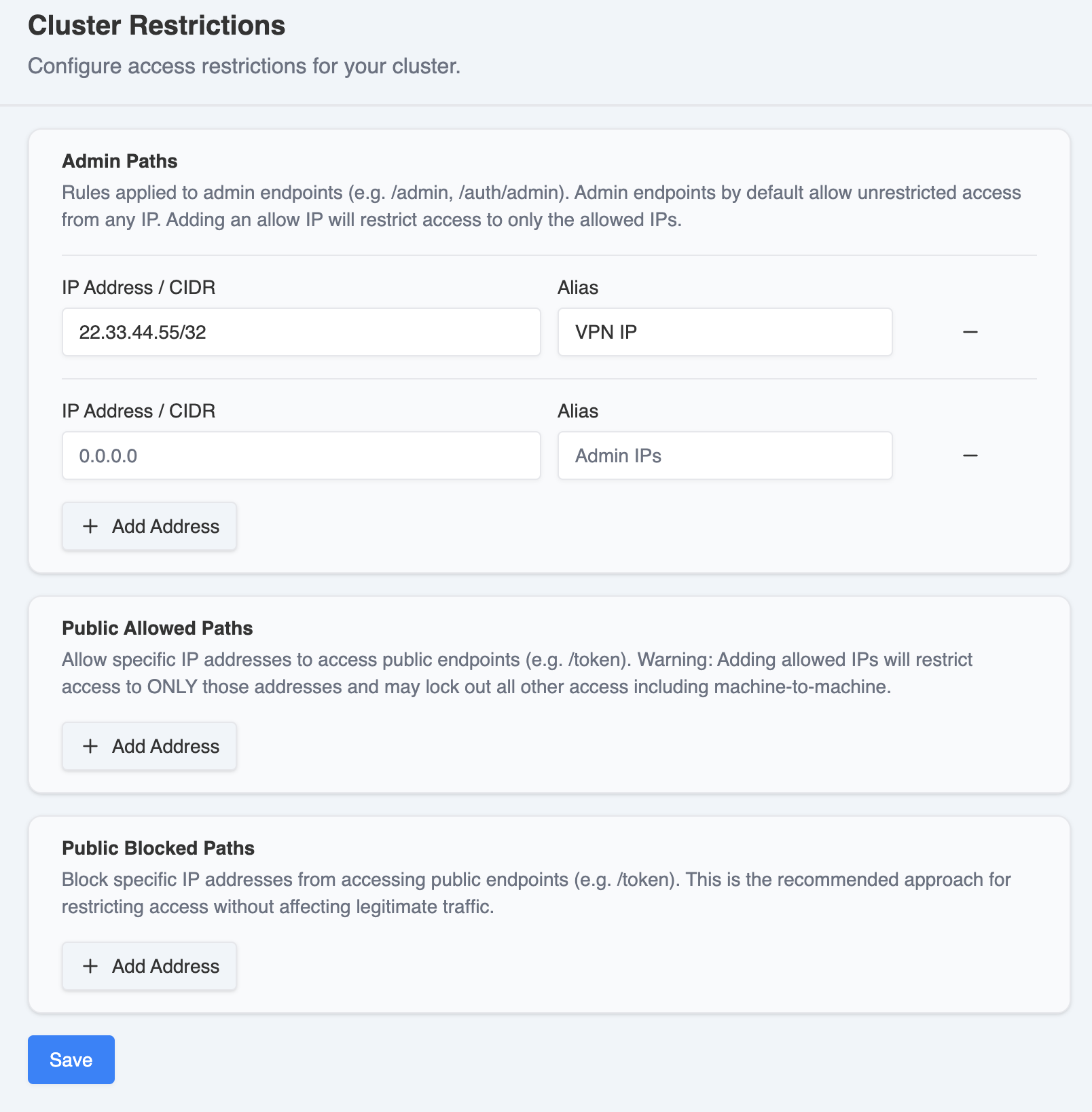
- Admin Paths: These restrictions apply to the administrative interfaces of your Keycloak instance (e.g. /admin, /auth/admin). Only specified IPs can access the admin console and related endpoints. This includes Admin APIs. Admin endpoints by default allow unrestricted access from any IP.
- Public Allowed Paths: Allow specific IP addresses to access public endpoints (e.g. /token).
- Note: Adding allowed IPs will restrict access to ONLY those addresses and may lock out all other access including machine-to-machine.
- Public Blocked Paths: Block specific IP addresses from accessing public endpoints (e.g. /token). This is the recommended approach for restricting access without affecting legitimate traffic.
Managing IP Restrictions
To add an IP restriction, follow these steps:
-
In the "IP Address / CIDR" field, enter the IP address or CIDR range you want to restrict. For the Alias, assign a recognizable name for the restriction.
-
Use the "Add Address" button to add additional IPs or ranges as needed.
-
Hit "Save" to apply changes.
-
Use the "-" to remove a restriction. Hit "Save" to apply changes.
After changes are saved, the Phase Two team will review and apply the restrictions to your cluster. Unlike cluster resources and environment variables, this step is not automated, so allow time for it to be applied. If a restriction change is time-sensitive, contact support.